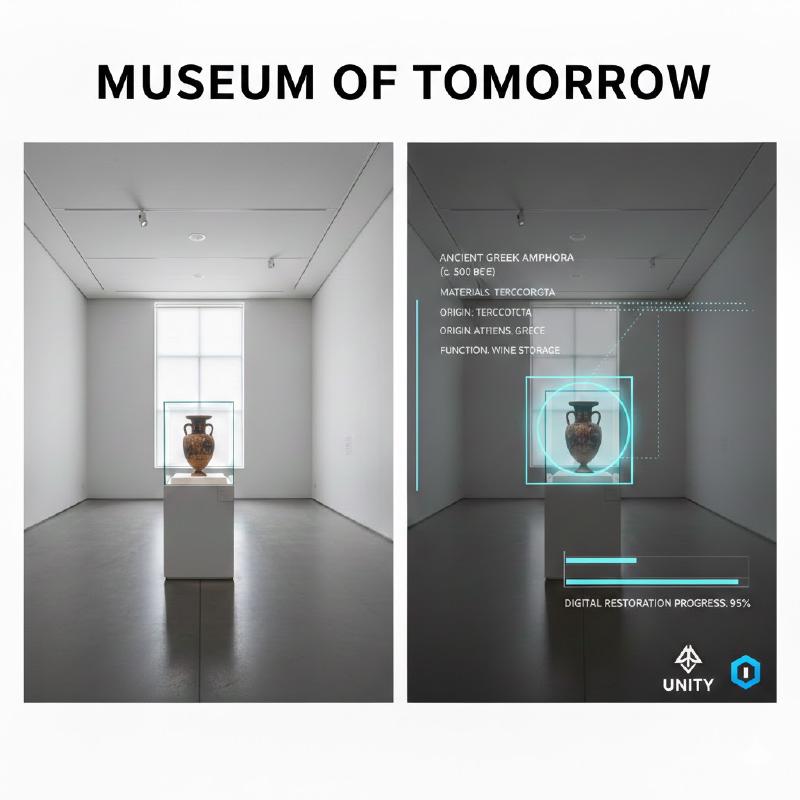
In this guide, I create a small Unity project to test Immersal, a library for Spatial Mapping and Visual Positioning Systems (VPS). This article was written entirely by the author in Italian, translated in english with Gemini. Nano Banana was used for the cover image.
Introduction
Briefly, Immersal offers an SDK that enables Spatial Mapping and Visual Positioning Systems (VPS). This SDK allows you to merge virtual elements with the real environment via Augmented Reality; it functions like an ultra-precise GPS with real-time updates. Furthermore, the library does not use or require markers in the physical environment.
Using Immersal is divided into three parts:
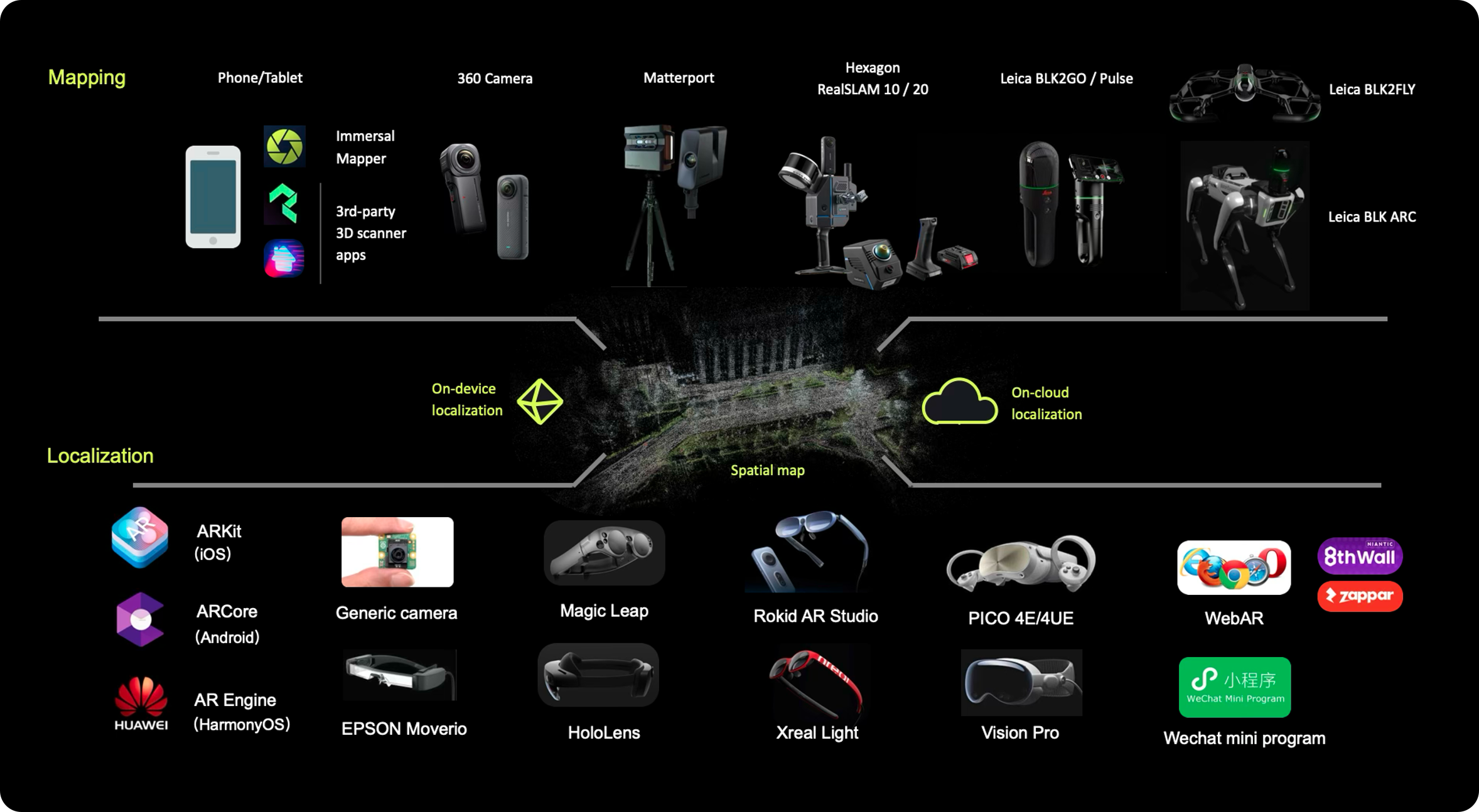
- Mapping real locations: Maps are built using a smartphone via the Immersal Mapper app (available on app stores).
- Creating applications based on the maps generated in step 1.
- Using the SDK to identify the position and the objects or maps tracked in step 1.
Usage Scenarios
In this article, we will see how to create augmented reality experiences—specifically, the scanning and tracking of 3D objects in a room to simulate a potential museum use case, and tracking an object in an outdoor environment to simulate an outdoor use case.
In general, Immersal is also recommended for AR games, advertising campaigns, and industrial solutions. All solutions can be implemented in both indoor and outdoor environments.
How does it work?
The Immersal SDK enables augmented reality experiences through Spatial Mapping and Localization. Development occurs via a REST API that communicates through the Immersal SDK.
There are two SDKs:
- Unity SDK: For developing AR experiences via Unity;
- Web SDK: For developing AR experiences via web development;
Limits and Pricing
The Free version offers mapping for relatively small spaces (up to 100 images) and does not allow for commercial use. Additionally, the Immersal logo must be present as a watermark in the AR app.
Information on commercial plans is available at this link: https://developers.immersal.com/docs/immersal-sdk/pricing/.
Demo and Project
In this section, we look at all the stages of creating our small project with Unity and Immersal. Specifically, we will address two use cases:
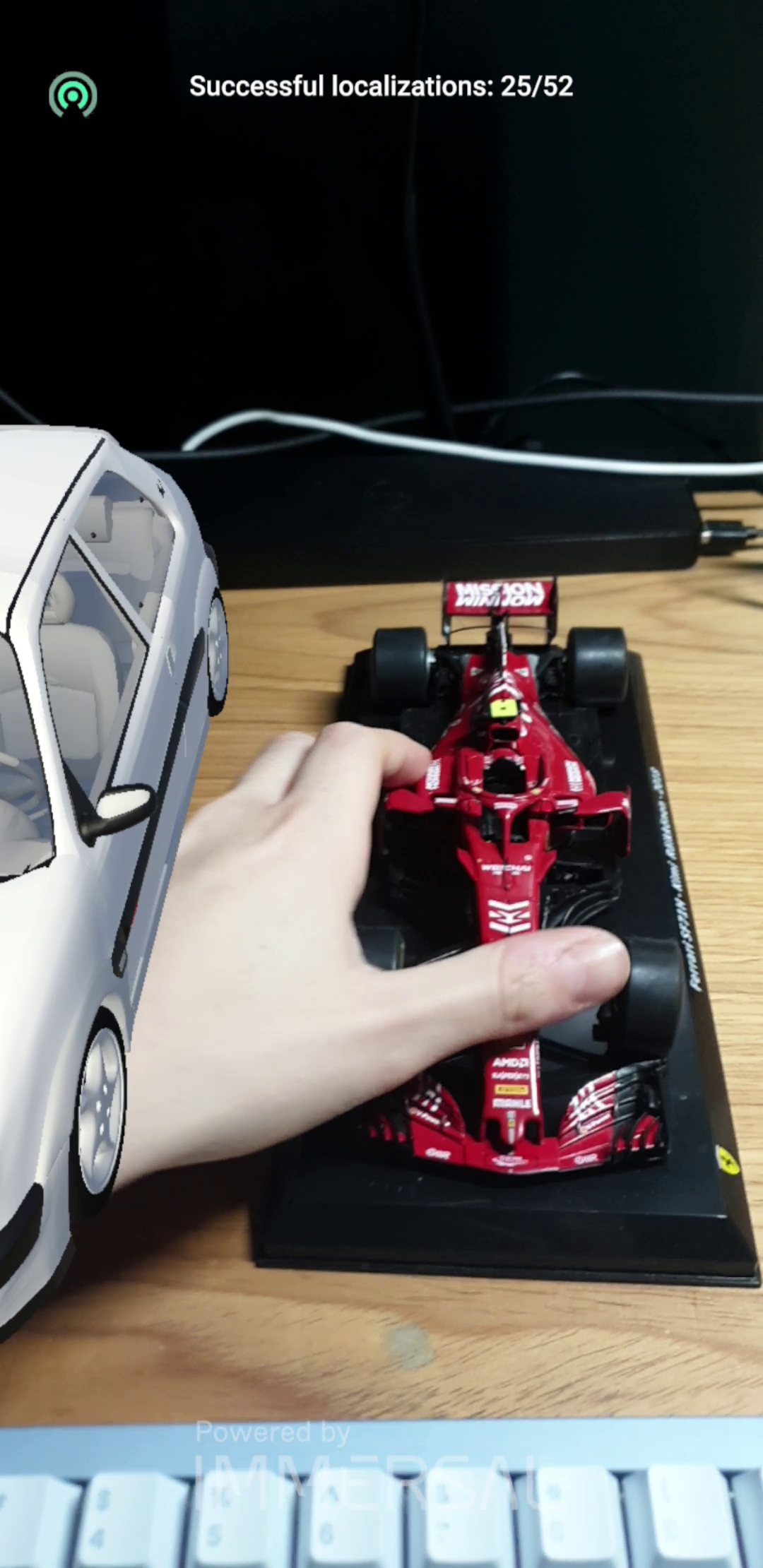
- Indoor Object Tracking: Recognition of a Ferrari scale model on a table.
- Outdoor Location Tracking: Recognition and virtual “restoration” of a Nasone (public drinking fountain) in Rome, and a test on a building facade.
Phase 1 - Mapping
Creating a map is the heart of VPS. Immersal does not use artificial “reference points” (markers) but creates a Point Cloud based on the geometric features of the environment.
Preparation: Download the Immersal Mapper app (available for iPhone and Android). Ensure the lighting is uniform and the area is clear of moving objects. Make sure the object to be registered is diverse and rich in detail, preferably with a matte and low-reflectivity surface.
Acquisition: Move slowly while taking photos from different angles. The app requires significant overlap between shots (about 60-70%) to calculate depth.

Test and Upload: Once the photos are taken (at least 20-30 for a small room), you can test the AR to see if the collected map is of high quality. If the result is satisfactory, send the data to the Immersal server by clicking the Upload icon.
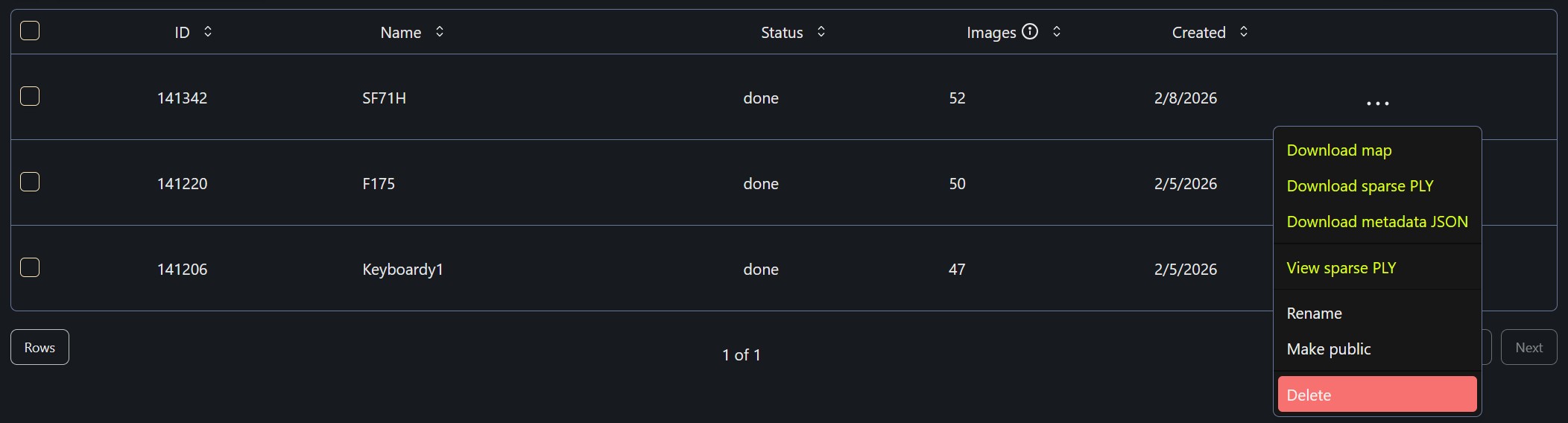
Result: After a few minutes, on the developer portal (https://developers.immersal.com/mymaps/), you can download the .byte file (for Unity) or the .ply file to visualize the 3D point cloud in the Unity editor.
Phase 2 - Unity SDK
Once the map is obtained, it’s time to anchor virtual content in real space.
First, the Unity environment must be configured for Android, ARCore, and ARFoundation.
Download: From the developer portal -> My Maps, download two files for the map you previously uploaded: the map and the point cloud.
The .bytes file will be used for object tracking, while the .ply file is the point cloud useful for understanding where to place any effects and/or 3D objects.
Import: Download the Immersal SDK from the portal and import it into your Unity project. Ensure you have configured AR Foundation (ARCore for Android or ARKit for iOS).
Once imported, open the SimpleSample scene, which already provides an example of the base scene to use for tracking.
Map Loading: Drag the .byte file generated in Phase 1 into the AR Map component. In Unity, you will see the point cloud appear: now you can position your 3D models (virtual paintings, directional arrows, or characters) exactly where you want them to appear in the real world.

Localization: The AR Localizer component will handle comparing the smartphone’s camera feed with the loaded map. When the points match, the virtual content will be “locked” into the correct position with precision.
Phase 3 - AR Demo
To test the effectiveness of the system, I created two distinct prototypes that leverage Immersal’s spatial persistence:
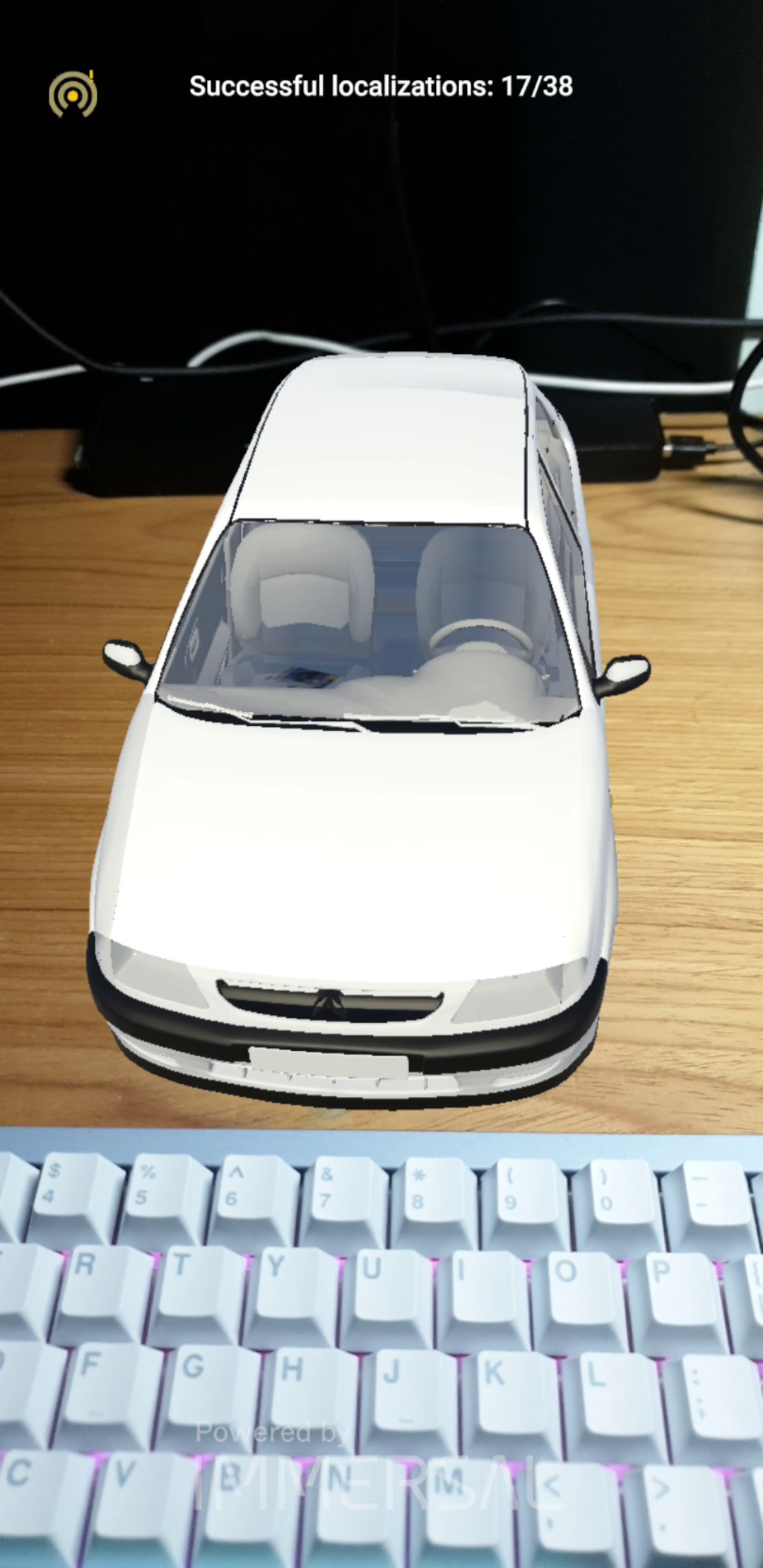
Museum Scenario (Indoor): I first mapped a 3D model of a Ferrari and, as seen, the tracking is nearly perfect. Once the camera successfully frames the object correctly, the tracking and the overlay of the 3D model are optimal.

Conclusions
Immersal greatly facilitates the development of Augmented Reality applications; the tracking phase can be carried out with both iPhone and Android using a dedicated app and a simple, intuitive backend. Tracking is easy, and the point cloud allows the user to anchor 3D models or effects onto the tracked object easily and with decent precision. However, there are some critical issues when using Immersal:
- 100 photos are sufficient to track a simple object or a small room, but if you want to track a museum hall, they become insufficient, and you must switch to business solutions.
- Precision drops significantly on smooth or highly reflective surfaces.
- It is tied to their backend; if they decided to remove the free tier, it would not be possible to track further elements.
- Watermark: in the free version, there is a fixed watermark that makes the AR experience less pleasant.
In conclusion, Immersal is a strong competitor to Vuforia, but both libraries are not ideal solutions in a museum context if you want an application that is maintainable over time and independent of third-party libraries.
Video
References
- Immersal SDK: Official Site and Documentation & Developer Portal
- Immersal Mapper App: Available on App Store (iOS) and Google Play (Android)
- Unity AR Foundation: Official Unity Documentation
- Sample Repository: Immersal SDK Samples on GitHub
- Vuforia Object Tracking:
Thanks! :)